
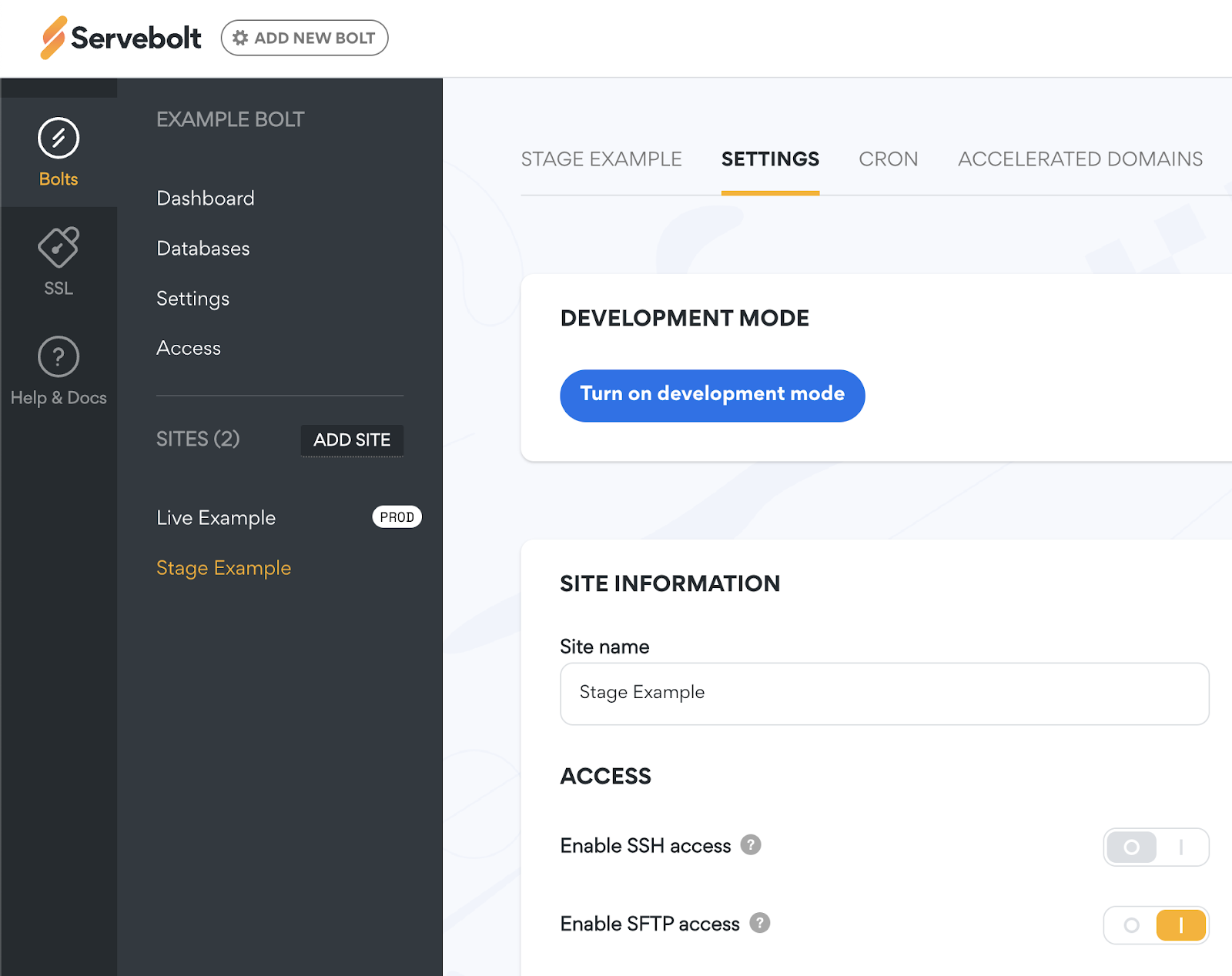
All Bolts set up in our environment have full access to the server either over SSH or SFTP. We don’t restrict anything as long as you have a username and password or authorization keys set up. But you might not always want anyone to get into the server, so we have provided you an option to completely shut access off. You can find two options in our Control Panel. One for turning on/off SSH access and one for turning on/off SFTP access.
To find these options, you first have to navigate to the site in question and then to its site settings. Under the Access section of your settings, you should see the two buttons for turning each option off. Orange means that access is enabled and grey for disabled. Be sure to scroll down to the bottom and hit Save Settings when done.
As shown in the image above, if I were to try to log into the server via SSH I would get “permission denied” now.

Other issues with “Permission denied (publickey)”
If you have the SSH Access option enabled and still get the "Permission denied (publickey)", then try to connect to your site like this:
ssh -oKexAlgorithms=diffie-hellman-group-exchange-sha256 user_19763@server-nameAnd as always, should you have any additional questions please don’t hesitate to contact our support chat at servebolt.com!
