
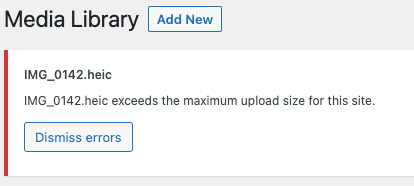
At some point, you might have encountered an error when you want to upload a bigger-sized file, like a high-quality image for example. If the file size is bigger than your set maximum upload size, you will get an error message something along these lines:
All sites with us come with default PHP values which control the maximum size of an upload or request. In this example, we’ll be looking at post_max_size and upload_max_filesize.
First post_max_size, this controls the maximum size of the whole POST request made to the server. Ensure that this is always the same or higher than upload_max_filesize. The default maximum size is 50MB.
Secondly upload_max_filesize controls the maximum size for the one file being uploaded. Strictly speaking, this doesn’t need to be updated for the WordPress Media Library, but good to add for redundancy. The default maximum size is 50MB.
To change these values, you simply need to edit your .htaccess file which is situated in your webroot, being the public/ directory. You can edit that with either one of our built-in text editors (nano) via SSH, or you can download it via SFTP and edit it locally.
If we for example want our values to go up to 200MB we would need to add them like this:
php_value upload_max_filesize 200M
php_value post_max_size 200M
Syntax: php_value [PHP_DIRECTIVE_NAME] [SIZE]
You should now see the updated maximum upload limit when trying to add a file to your Media Library.

To check all set PHP values in your application at Servebolt you have to create a PHP file which is accessible over the internet. Log into your site via either SSH or SFTP and create a file called phpinfo.php in your public folder. In this file add this line of code:
<?php phpinfo(); ?>Now you can see all PHP values by requesting that file in your browser like https://your.domain/phpinfo.php.
WordPress Multisite Network
If you have a multisite network there is one more place that could be good to check. First, navigate to your network admin settings:
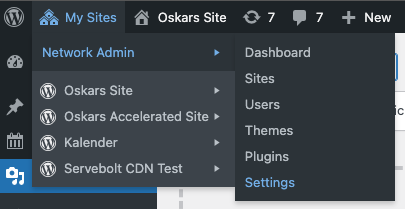
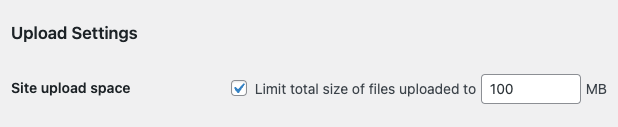
Scroll down to your Upload Settings and if you see that you have the checkbox checked this means this limit takes precedence over .htaccess. Simply uncheck this if you want to control everything from .htaccess instead.
And as always, should you have any additional questions please don’t hesitate to contact our support chat at servebolt.com!
